How to Set Up and Customize the Homepage Using the Impulse Theme
The Impulse theme for Shopify is renowned for its versatility and elegance, making it an excellent choice for a visually appealing and functional online store. Setting up and customizing your homepage with the Impulse theme can enhance user experience and drive conversions. Here’s a step-by-step guide to help you create a captivating homepage.
Step 1: Install the Impulse Theme
Before you start customizing, you need to install the Impulse theme on your Shopify store.
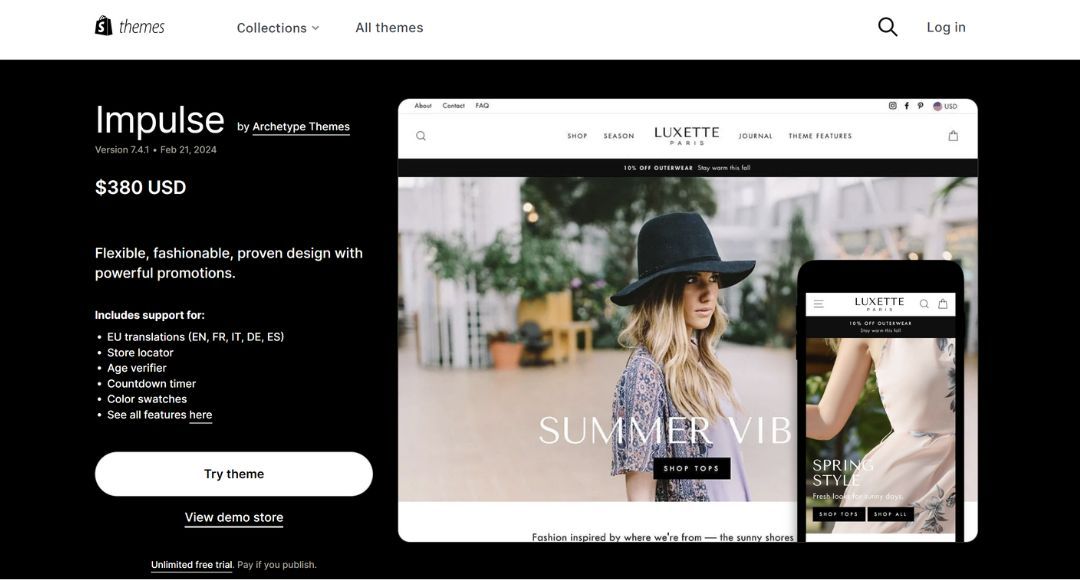
Purchase the theme impulse shopify: Visit the Shopify Theme Store and purchase the Impulse theme.
Add the Theme to Your Store: Once purchased, click "Add theme" to install it on your Shopify store.
Publish the Theme: Navigate to your Shopify admin, go to Online Store > Themes, find Impulse under “Theme library,” and click "Actions" > "Publish."
Step 2: Access the Theme Editor
To begin customizing your homepage, you need to access the theme editor.
Navigate to the Theme Editor: In your Shopify admin, go to Online Store > Themes. Find the Impulse theme and click "Customize."
Select Homepage: Ensure you are on the homepage by selecting it from the dropdown menu in the top bar.
Step 3: Customize the Header
The header is a critical part of your homepage as it is the first thing visitors see.
Logo: Upload your store’s logo by clicking on “Header” in the left-hand menu. Ensure your logo is high-quality and represents your brand.
Navigation: Set up your main navigation menu. Go to Online Store > Navigation and create or edit the menu items to include important links like Home, Shop, About Us, and Contact.
Announcement Bar: Enable the announcement bar to highlight special promotions or important messages. Customize the text and background color to match your brand.
Step 4: Add and Customize Sections
Impulse theme allows you to add various sections to your homepage. Here are some key sections you might want to include:
Hero Section
The hero section is the large banner at the top of your homepage. It’s crucial for making a strong first impression.
Add Hero Image: Click “Add section” and select “Slideshow” or “Image with text overlay.” Upload a high-quality image that reflects your brand.
Customize Text: Add compelling text and a call-to-action (CTA) button to encourage visitors to explore further. Ensure the text is bold and clear.
Collection Lists
Showcasing your collections on the homepage can help visitors easily navigate your products.
Add Collection List: Click “Add section” and choose “Collection list.”
Select Collections: Choose which collections to feature. You can add a title and description for each collection.
Customize Layout: Adjust the number of collections per row and the overall layout to ensure it looks balanced and attractive.
Featured Products
Highlighting specific products can draw attention to bestsellers or new arrivals.
Add Featured Products: Click “Add section” and select “Featured collection.”
Select Collection: Choose a collection to feature, and the products from this collection will be displayed.
Customize Display: Adjust the number of products shown and customize the product details, such as showing the price and a quick view option.
Testimonials
Adding testimonials can build trust and credibility with potential customers.
Add Testimonials Section: Click “Add section” and select “Testimonials.”
Enter Testimonials: Add customer quotes, names, and photos. Ensure the testimonials are genuine and positive.
Newsletter Signup
Encourage visitors to subscribe to your newsletter to keep them engaged with your brand.
Add Newsletter Section: Click “Add section” and select “Newsletter.”
Customize Text: Write a compelling message encouraging visitors to sign up. Ensure the signup form is simple and easy to use.
Step 5: Customize the Footer
The footer is often overlooked but is an important part of your homepage.
Footer Menu: Go to Online Store > Navigation and create a footer menu with links to important pages like Privacy Policy, Terms of Service, and FAQs.
Social Media Links: Add social media icons linking to your profiles. This can help improve your social media following.
Contact Information: Ensure your contact details are easily accessible. You can add an email address, phone number, and physical address if applicable.
Step 6: Optimize for Mobile
More users are shopping on mobile devices, so ensuring your homepage looks great on mobile is crucial.
Preview Mobile View: In the theme editor, switch to mobile view to see how your homepage looks on a smaller screen.
Adjust Elements: Make necessary adjustments to ensure that text, images, and buttons are easily readable and clickable on mobile devices.
Step 7: Finalize and Publish
Before making your homepage live, review all the changes you’ve made.
Preview Changes: Use the “Preview” option in the theme editor to see how your homepage looks.
Save Changes: If you’re satisfied with the look and functionality, click “Save” to apply all changes.
Publish: Once everything is perfect, publish the changes to make them live on your store.
Conclusion
Setting up and customizing the homepage using the Impulse theme can significantly enhance your store's appearance and user experience. By following these steps, you can create a visually appealing and functional homepage that reflects your brand and encourages visitors to explore your products.